

Claude Code comes in two main forms for working on your own machine: the claude command in a terminal, and the Code tab in the Claude desktop app for macOS, Windows, and Linux (in beta). People ask which one is better. They overlap far more than that question suggests. Anthropic's docs say Desktop runs the same underlying engine with a graphical interface. The differences are around the edges, and a few of those edges matter a lot depending on how you work.
You can run both at the same time on the same machine, even on the same project. They read the same configuration files, so very little has to be set up twice:
- CLAUDE.md and
CLAUDE.local.mdfiles in your project - MCP servers from
~/.claude.jsonor.mcp.json - Hooks, skills, and permission rules from your settings files
- The same models, picked from a dropdown in Desktop instead of with
/model
One difference catches people out. The Code tab runs its own copy of Claude Code, which the desktop app downloads and updates. It can be on a different version from the claude command in your terminal, and updating one doesn't update the other. If a feature works in the terminal but not in the app, type /status in a Desktop session to see which version it's on, and check for app updates from the Help menu on Windows or the Claude menu on macOS.
MCP has a wrinkle too. The desktop app also loads servers from claude_desktop_config.json, the file the Claude chat app uses, and the standalone CLI doesn't read that file. A server defined only there shows up in Desktop and goes missing in the terminal.
What each one can do that the other can't
The desktop app's extras are mostly about seeing and steering work instead of reading it scroll by:
- Diff review. A
+12 -1counter opens a file-by-file diff. Click any line to leave a comment, then send all your comments at once and Claude makes the changes. - Parallel sessions. Each session sits in the sidebar, can get its own Git worktree so two tasks don't edit the same files, and can open side by side with another one.
- App preview. Claude starts your dev server, opens it in a built-in Browser pane, and checks its own changes by clicking around and taking screenshots.
- Pull request tracking. After a PR opens, a CI bar shows check results, and you can turn on auto-fix for failing checks or auto-merge once they pass. This needs the GitHub CLI installed and signed in.
- Everything else: panes for a terminal, file editor, and plan you can arrange freely, side questions that don't derail the main session, an iOS Simulator pane on macOS, image and PDF attachments, scheduled tasks, and sessions that run in the cloud or over SSH.
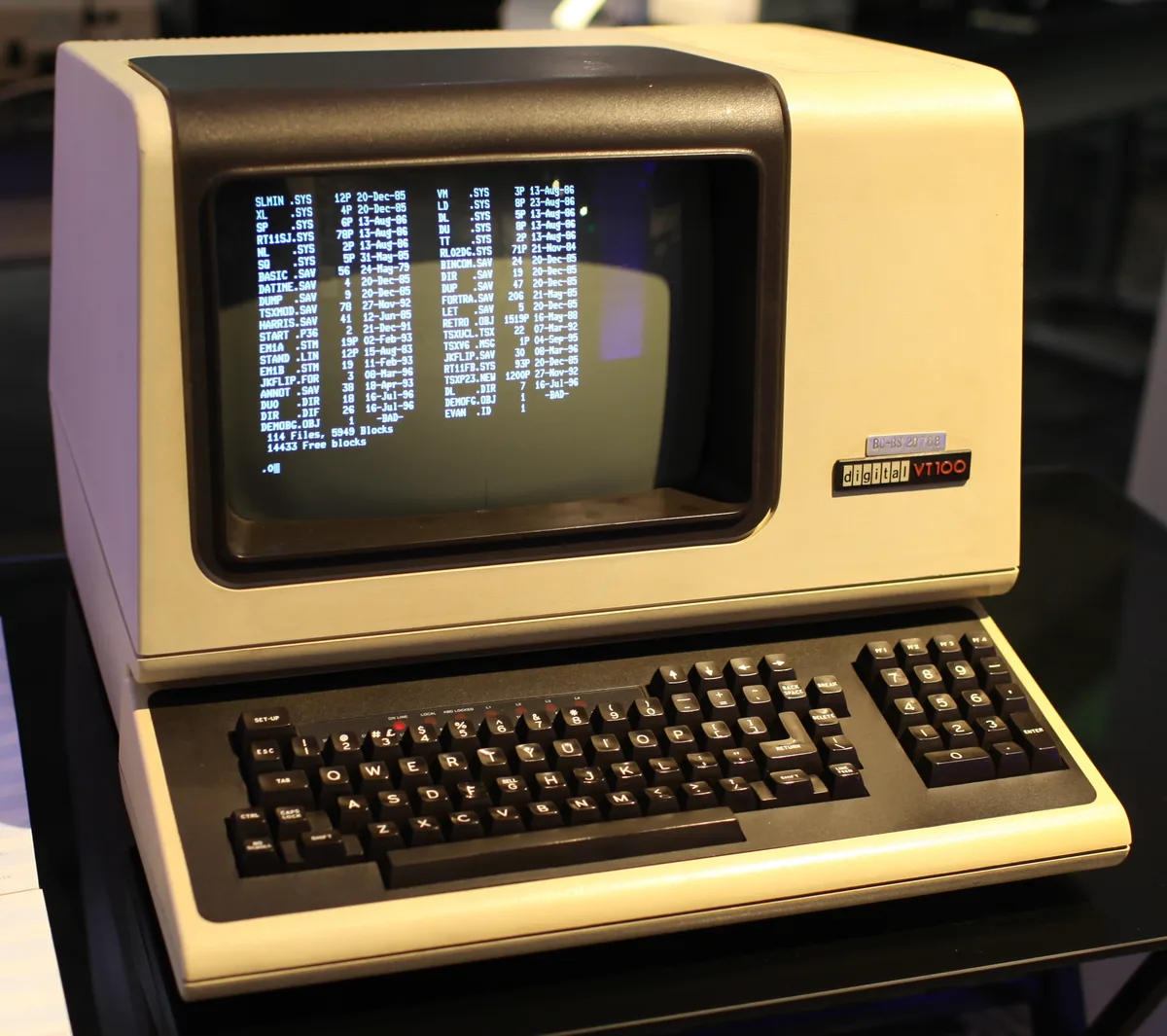
The CLI keeps the things that need a script or a terminal. Desktop is interactive only, so --print and --output-format have no equivalent there, which rules it out for CI jobs and headless runs. Agent teams, where one Claude assigns work to teammates, are CLI-only. So is the dontAsk permission mode. Commands that open an interactive panel in the terminal, such as /permissions, reply that they aren't available in the Code tab, so you edit settings files directly or run them from a terminal. And the CLI connects to Amazon Bedrock, Google Cloud, and Microsoft Foundry directly, where Desktop needs a separate setup to do the same.
Anthropic's own rule of thumb is short: use Desktop to manage parallel sessions, arrange panes, or review changes visually, and use the CLI for scripting, automation, or a terminal habit you don't want to break. If you spend your day in an editor, the VS Code extension is a third option worth a look. For one longtime terminal user's case for switching, see this post.
Moving a session from the terminal to the app
Each one keeps its own session list, but a terminal session can move into Desktop with its full history. There are three ways to do it:
- From inside the session: run
/desktop. Claude Code saves the session, opens it in the app, and exits the CLI. - From your shell:
claude --desktop --resume <session-id>, using the ID that/statusshows. A session name won't work in place of the ID. Use--continueinstead to grab the most recent conversation in the current folder. This flag needs Claude Code v2.1.285 or later. - From the app: close the session in your terminal, then type
/resumein the Desktop prompt box and pick it from the list of sessions you started in the CLI on that computer.
The first two only work on macOS and x64 Windows, and only when you're signed in with a Claude subscription, so they're unavailable with an API key or a cloud provider. The shell command also won't move a session that's open in another terminal or still running in the background. /resume in Desktop works in local sessions only, not SSH, WSL, or cloud ones.
Desktop continues the same session rather than a copy, so claude --resume in the terminal still finds it later. That makes it practical to start something in the terminal and switch to the app when there's a diff worth reading properly.
Remote Control: driving either one from your phone
Remote Control connects a session running on your computer to claude.ai/code or the Claude app on iOS and Android. Claude keeps running on your machine with your files, tools, and MCP servers. The phone or browser is a window into that session, and messages from either side land in the same conversation.
It needs a Pro, Max, Team, or Enterprise plan, and on Team and Enterprise an Owner has to switch it on in the admin settings first. API keys aren't supported, and it's unavailable on Bedrock, Google Cloud, Foundry, or when ANTHROPIC_BASE_URL points anywhere other than Anthropic's API. To start it:
claude remote-controlstarts a server that waits for connections. Press the spacebar to show a QR code your phone can scan. It can serve many sessions at once, 32 by default.claude --remote-controlstarts a normal terminal session that's also reachable remotely./remote-control(or/rc) inside a running session, including in Desktop and the VS Code extension, connects it with its history. Desktop also has a per-session switch and a setting that connects every new session automatically.
For push notifications, install the Claude app, sign in with the same account, then run /config and turn on Push when Claude decides, Push when actions required, or both. Claude pushes when a long task finishes or it needs a decision, and you can ask for one in a prompt, such as "notify me when the tests finish".
Most "Remote Control not working" reports come down to a few limits in the docs:
- The
claudeprocess has to keep running. Close the terminal or quit the app and the session goes offline. On a remote server, start it insidetmuxorscreenso it survives your SSH connection dropping, which the SSH guide covers. - Outside server mode, each process carries one remote session.
- Setting
CLAUDE_CODE_DISABLE_NONESSENTIAL_TRAFFICorDISABLE_GROWTHBOOKturns Remote Control off. Unset it in your shell and in theenvblock of any settings file. - If
/configsays No mobile registered, open the Claude app on your phone so it can refresh its push token. - In server mode, a network outage of roughly 10 minutes ends the process. An interactive session keeps retrying, but if it reports it couldn't reach the server for about 30 minutes, run
/remote-controlto reconnect. - Some commands only work at the machine, such as
/pluginand/resume. From the phone,/modeland/effortneed the value typed after them, as in/effort high.
Remote Control assumes your computer stays on. If you want work to continue with the laptop closed, start a cloud session instead, which runs on Anthropic's machines and keeps going after you shut down. On Pro and Max there's also Dispatch, where you message a task from the Claude mobile app and Dispatch can open a Code session for it in the desktop app on your machine.
Sources
- Claude Code docs: Desktop application (including "Coming from the CLI?") and Remote Control
- Cover photo: "Man with smartphone and laptop" by Alejandro Escamilla, via Wikimedia Commons, CC0 1.0 (public domain dedication), cropped
- Terminal photo: "DEC VT100 terminal" by Jason Scott, via Wikimedia Commons, CC BY 2.0