

There are three ways to use Claude Code with a server you reach over SSH, and they behave differently enough that picking the wrong one is where most of the frustration comes from. You can install Claude Code on the server and run it there. You can keep the desktop app on your laptop and let it open an SSH session to the server, which is a built-in feature now. Or you can leave Claude Code on your own machine and let it run ssh commands against the server, the same way you would.
This site is run the third way, from a laptop, against a handful of Linux boxes. So the third section has more scar tissue in it than the other two.
Run Claude Code on the server itself
This is the plainest setup. SSH into the box, install Claude Code the same way you would on any Linux machine (the Linux guide covers the installer and the usual errors), and run claude in the project folder. Claude then works on the server's files with the server's tools, which is what you want when the code only builds or runs there.
Signing in is the first snag. Claude Code tries to open a browser for the login, and a server doesn't have one. Press c to copy the login URL, open it on your own computer, and sign in. Because the browser can't reach the callback on the server, it shows a code instead of redirecting back. Paste that code at the Paste code here if prompted prompt in your SSH window. Anthropic's docs call out SSH sessions, WSL2, and containers as the cases where this happens. On Linux, the login is saved to ~/.claude/.credentials.json with file mode 0600, so treat that file like a private key.
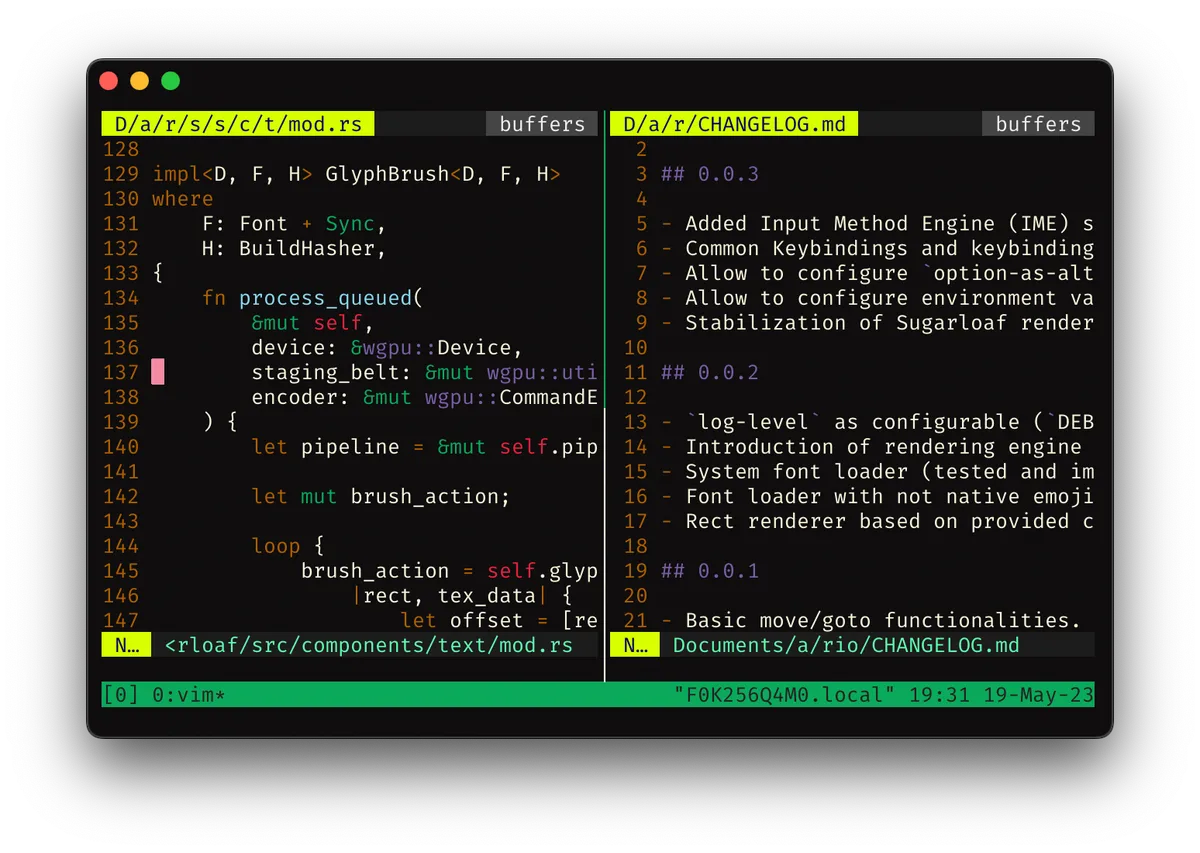
The second snag is that the session dies with your SSH connection. Close the laptop lid and Claude stops mid-task. Run it inside tmux or screen on the server so the process outlives the connection, then reattach later. If you'd rather check in from your phone, Remote Control works here too: start claude remote-control inside tmux on the server and open the session from the Claude app or claude.ai/code.
Two smaller things. Copying text out of Claude's output can fail, since Claude Code can't reach your local clipboard from the server. It sends the text to your terminal as an OSC 52 escape sequence, which some terminals ignore (iTerm2 until you allow it in settings, and macOS Terminal not at all). Holding your terminal's native-selection key while you drag is the fallback. And put a CLAUDE.md on the server that says what the box is, what runs on it, and what must never be restarted casually. The CLAUDE.md guide covers what belongs in one.
Use the desktop app's SSH sessions
The desktop app can run a session on a remote machine while you work in the app on your laptop. Open the environment dropdown in the prompt box before you start a session, pick SSH > Add SSH connection, and fill in a name, the host (user@hostname or a Host from your ~/.ssh/config), the port, and optionally a key. The first time you connect, Desktop installs Claude Code on the remote machine for you. Permission modes, connectors, plugins, and MCP servers all work in these sessions.
When the connection fails after you log in, it's almost always one of the remote machine's requirements. The docs list them, and these are the ones that bite:
- The SSH server has to offer SFTP. Run
sftpagainst the same host and port from your computer. If you don't get ansftp>prompt, add aSubsystem sftpline tosshd_config. - Desktop opens several sessions over one connection. A server with
MaxSessions 1insshd_configneeds it raised. OpenSSH's default is 10. - Desktop installs into
~/.claude/remote/and runs from there, so your home directory can't be mountednoexec. Leave about 1 GB free for each user who connects. - The processor has to be x86_64 or arm64, and the login shell has to run commands sent over SSH, as Bash, Zsh, and sh do.
On macOS and Linux, Desktop runs your OpenSSH client, so ProxyJump, IdentityFile, and the rest of your SSH config apply. Test the same ssh devbox in a terminal first, since Desktop can't fix an entry that doesn't work there. Desktop gives the connection 30 seconds by default. Through a jump host that's sometimes not enough, and a ConnectTimeout 120 line in the host's entry fixes it.
A task in an SSH session keeps running if your laptop sleeps or drops off the network, because Claude Code runs on the remote machine under a helper that Desktop installs. There's a catch the docs state plainly. With a Claude account, Desktop renews the task's sign-in only while Desktop is running and connected, so an overnight task can stop when that sign-in expires. For work that has to finish while your computer is off, a cloud session is the right tool. One more difference from a local session: an SSH session reads skills from ~/.claude/skills/ on the remote machine, not from your laptop.
Drive the server from your own machine
The third way skips installing anything on the server. Claude Code runs on your laptop and does its server work through commands like ssh root@server 'systemctl status nginx'. One session can look after several machines, your SSH keys never leave your laptop, and Claude's notes and memory stay in one place. It's how this site's server is maintained: deploys, database upgrades, reboots, backup checks, all from one local session.
It also has the most ways to go wrong, and nearly all of them are about quoting. A command that passes through your local shell, then SSH, then the remote shell gets its quotes stripped at each step. Claude tends to write the whole thing inline, and a single apostrophe in a commit message or an SQL string is enough to break it. We hit this more than once on this site's server: a psql variable lost its quotes on the way through and an insert failed, and a commit message with an apostrophe in it never got committed. The fix that stopped it happening was to have Claude write the script to a local file, copy it over with scp, and run the file. If you're on Windows using Git Bash, heredocs pasted into a command can mangle backslashes in the same way, and the same file-and-copy approach avoids it.
A few habits save time:
- Add
-o BatchMode=yesand aConnectTimeoutto non-interactive commands. Without them, a missing key makessshwait for a password nobody is there to type, and the tool call just hangs. - Set up
Hostaliases in~/.ssh/configand tell Claude about them in your localCLAUDE.md. Typingssh webis harder to get wrong than an IP address. - Long jobs, like a build or a backup, can outlast the tool's time limit. Run them in the background or under
nohupon the server and check back. - On Windows, an
ssh.exethat never exits can stop Claude Code from opening again. This post covers finding and ending it.
Whichever way you connect, Claude ends up able to run anything your SSH user can, and on most small servers that user is root. Three things are worth setting up before the first real task.
Use permission rules to make Claude ask before the commands you'd regret. Deny rules are checked before allow rules, so a deny on something like Bash(rm -rf *) holds even if a broader allow is in place. The rules match the command as written, though, so they're a guard against slips and nothing more.
Have backups you've actually restored. A backup job that reports success every night can still be quietly broken. When this site moved to a newer Postgres, the test restore we ran first showed every restore had been failing to rebuild one index for weeks, and nothing had flagged it. Restoring one backup into a scratch database takes a minute and is the only way to know. This post covers why that matters more when an AI is running commands.
And use a key for SSH with password login turned off on the server. Then nothing in the session, a log, or a stray paste can turn into a login.
Sources
- Claude Code docs: Desktop application (SSH sessions), Authentication, Troubleshooting, Remote Control, and Configure permissions
- Cover photo: "NOIRLab HQ Server Racks" by NOIRLab/NSF/AURA/T. Slovinský, via Wikimedia Commons, licensed CC BY 4.0, cropped
- tmux screenshot: "Demo-tmux" by Avelino0, via Wikimedia Commons, CC BY-SA 4.0