
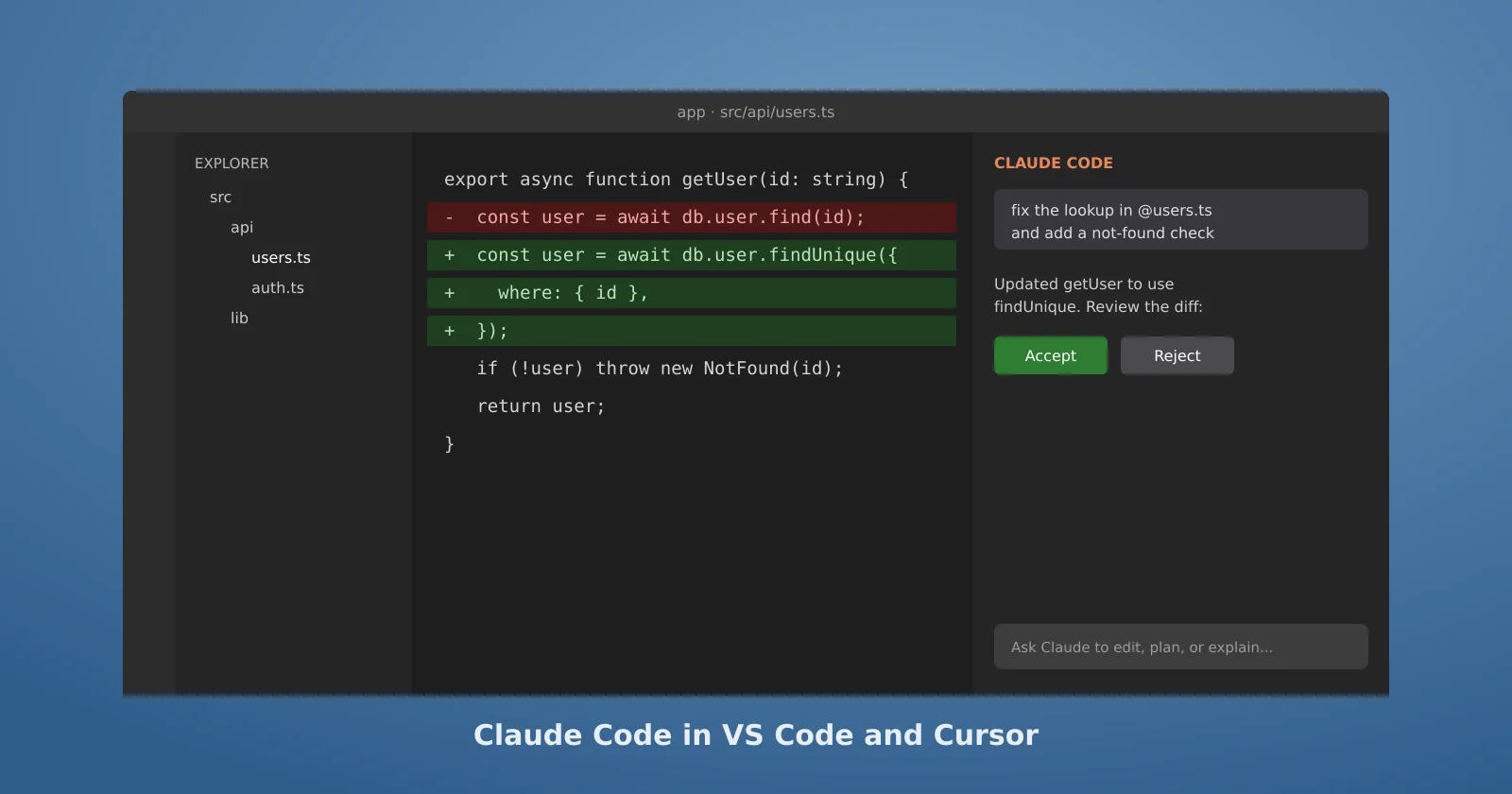
The Claude Code extension puts the agent in a panel inside VS Code, with its changes shown as diffs in the files you already have open. Anthropic calls it "the recommended way to use Claude Code in VS Code," and it installs in Cursor and other VS Code forks too. This guide covers installing it, the features worth using from day one, and the one gotcha that confuses almost everyone. The full reference is Anthropic's VS Code documentation.
Install and sign in
You need VS Code 1.94 or later and a paid Claude subscription (Pro, Max, Team, or Enterprise) or an Anthropic Console account. No API key is required. Install Claude Code from the Extensions view. In Cursor there's a direct install link in the docs, and other forks can install it from the Open VSX registry. Open the Claude Code panel and sign in with your account the first time.
If your editor can't install the extension at all, install the CLI and run claude in the editor's built-in terminal instead. The CLI works in any terminal.
The gotcha: the extension doesn't put claude on your PATH
The extension ships its own private copy of Claude Code for its panel. In the docs' words, "the extension does not add claude to your PATH." So the panel works, but typing claude in a terminal fails with "not recognized" or "command not found." That isn't a broken install. Run the standalone installer once and claude works in every terminal, including VS Code's own. If it's still missing after that, the PATH fix in our Windows guide or our Linux guide applies.
Review changes as diffs
This is the main reason to use the extension. When Claude edits a file, you see the change as a diff in the editor and can accept or reject it. You can also step through a proposed edit one change at a time with Accept Change at Cursor and Reject Change at Cursor, from the editor's right-click menu or the Command Palette.
The docs list the rest of what the panel adds: you can "review and edit Claude's plans before accepting them, auto-accept edits as they're made, @-mention files with specific line ranges from your selection, access conversation history, and open multiple conversations in separate tabs or windows." Selecting some lines and @-mentioning them is the fastest way to point Claude at exactly the code you mean.
Rewind when a change goes wrong
Hover over any message to get the rewind button. The docs describe three options: Fork conversation from here, which branches the conversation and keeps your code; Rewind code to here, which reverts file changes and keeps the conversation; and Fork conversation and rewind code, which does both. Checkpoints only track Claude's own file edits, so commit before big changes and keep git as your real safety net.
Permission modes and sessions
The mode indicator in the panel switches between Manual, accept edits, plan, and auto, the same modes as the CLI. If you want new conversations to start in a particular mode, the claudeCode.initialPermissionMode setting does that, though it doesn't accept auto; to start in auto, leave it unset and pick Auto from the indicator once.
The Session history button lists past conversations, and you can search them and resume any one with its full history. The extension and the CLI "share the same conversation history," so a conversation from the panel can be picked up in a terminal with claude --resume. Settings in ~/.claude/settings.json, such as allowed commands, hooks, and MCP servers, apply to both.
When to use the terminal instead
Some features only exist in the CLI: the full set of commands and skills, the ! shortcut for running a shell command yourself, and tab completion. For those, open the integrated terminal (Ctrl+` on Windows and Linux, Cmd+` on Mac) and run claude. The CLI "automatically integrates with your IDE for features like diff viewing and diagnostic sharing," so you keep the diffs. From a terminal outside VS Code, run /ide to connect it.
Two smaller things worth knowing. You can reference a terminal's output in a prompt with @terminal:name, using the terminal's title, so Claude sees an error without you copying it. And if you prefer the CLI look but want it in the editor, check the useTerminal setting to open Claude in terminal mode instead of the panel. If you work across several projects at once, the Claude desktop app is another option, and we wrote about why it won over a longtime terminal user.