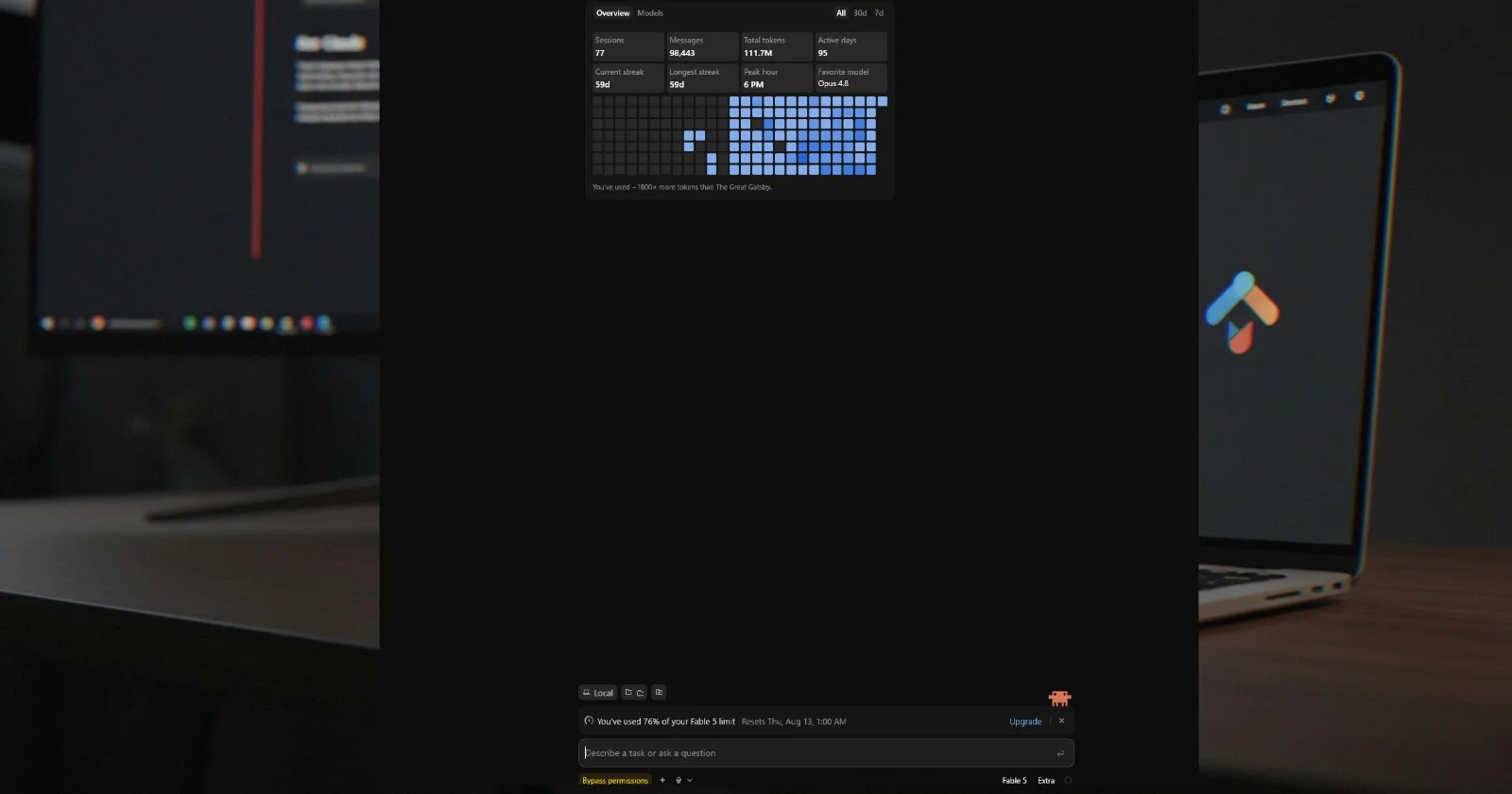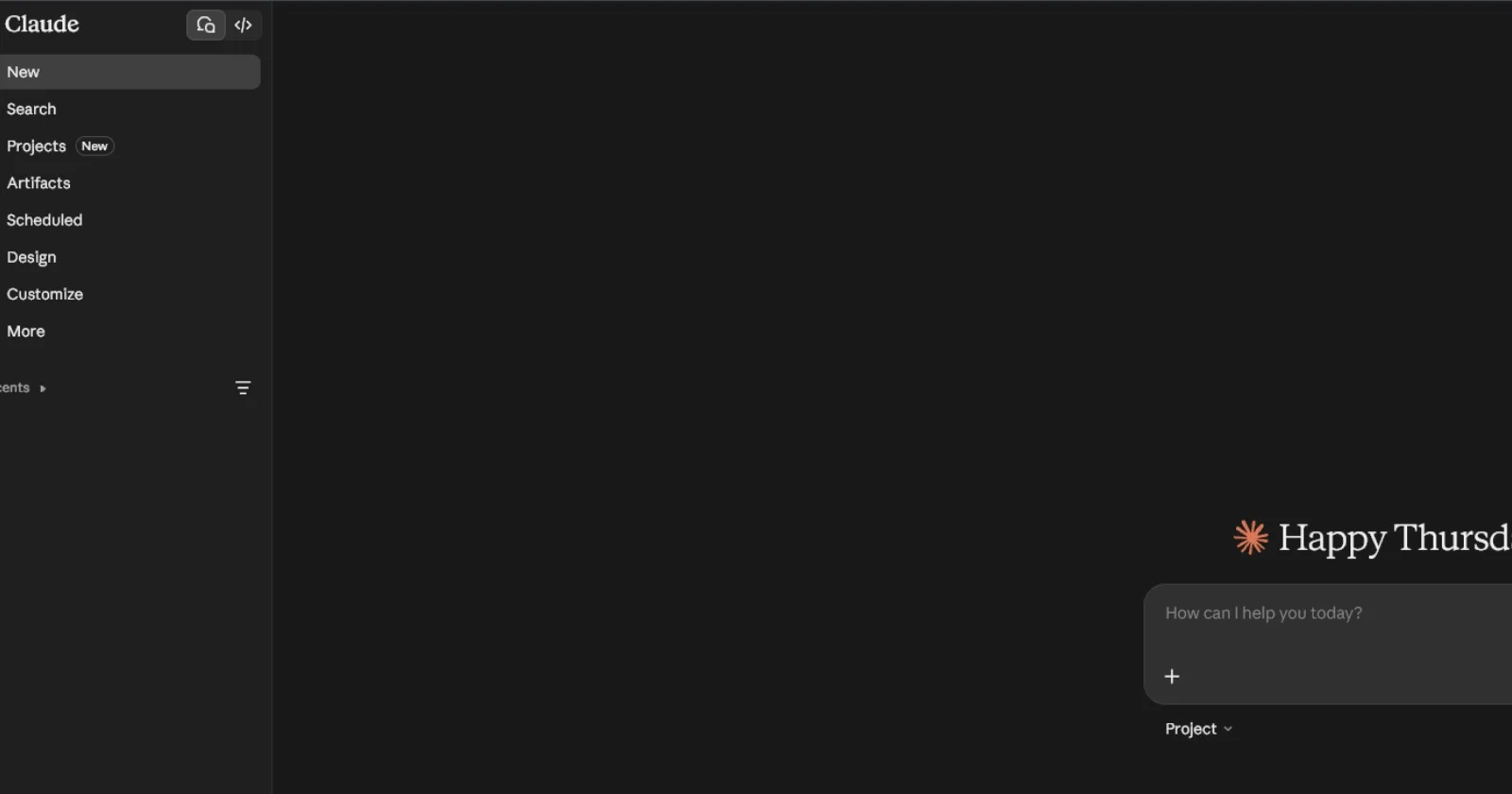
The Claude Code desktop app is now better than the CLI for most people, most of the time, and I say that as a person who has lived in a terminal since before some of you were born. I expected the desktop app to be the training-wheels version, where it points beginners at, and I'd stay in my tmux panes like a respectable curmudgeon. Then I actually used it for a few weeks, and now the terminal version is just something I open occasionally, for specific jobs, like a wrench. This is coming from a guy who used to have 7 terminals open with each Claude Code CLI session doing its own thing on separate platforms and servers.
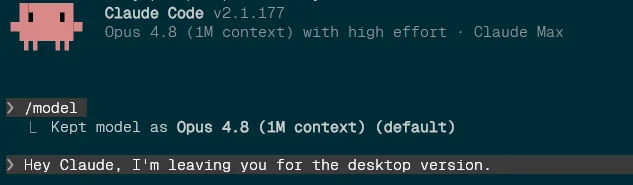
After using the desktop version I realized the desktop app is not a different, dumber Claude Code, it's the same agent wearing a better cockpit.
Your server's RAM is for your app, not your AI
This one that self-hosters with entry level VPS especially need to hear. The old workflow for working on a live project was: SSH into the box, run the CLI up there, and let the agent do its thing. Which means the AI harness, with its context and its tooling and its appetite, is running on the same machine as your production app. If that machine is a $10 VPS with 2 gigs of RAM, you are donating a meaningful slice of your server's memory to the assistant that's supposed to be helping it.
The desktop app flips the geometry. The agent runs on your own computer, the machine with 32 gigs and nothing better to do, and reaches out to your servers over plain SSH exactly the way you would: run a command, read the output, copy a file. Your server never hosts the brain, it just answers the phone. Nothing heavy competes with your app for memory, and if the agent goes on some absurd exploration through a giant log file, that's your laptop's problem, not production's.
Every project at once, no terminal gymnastics
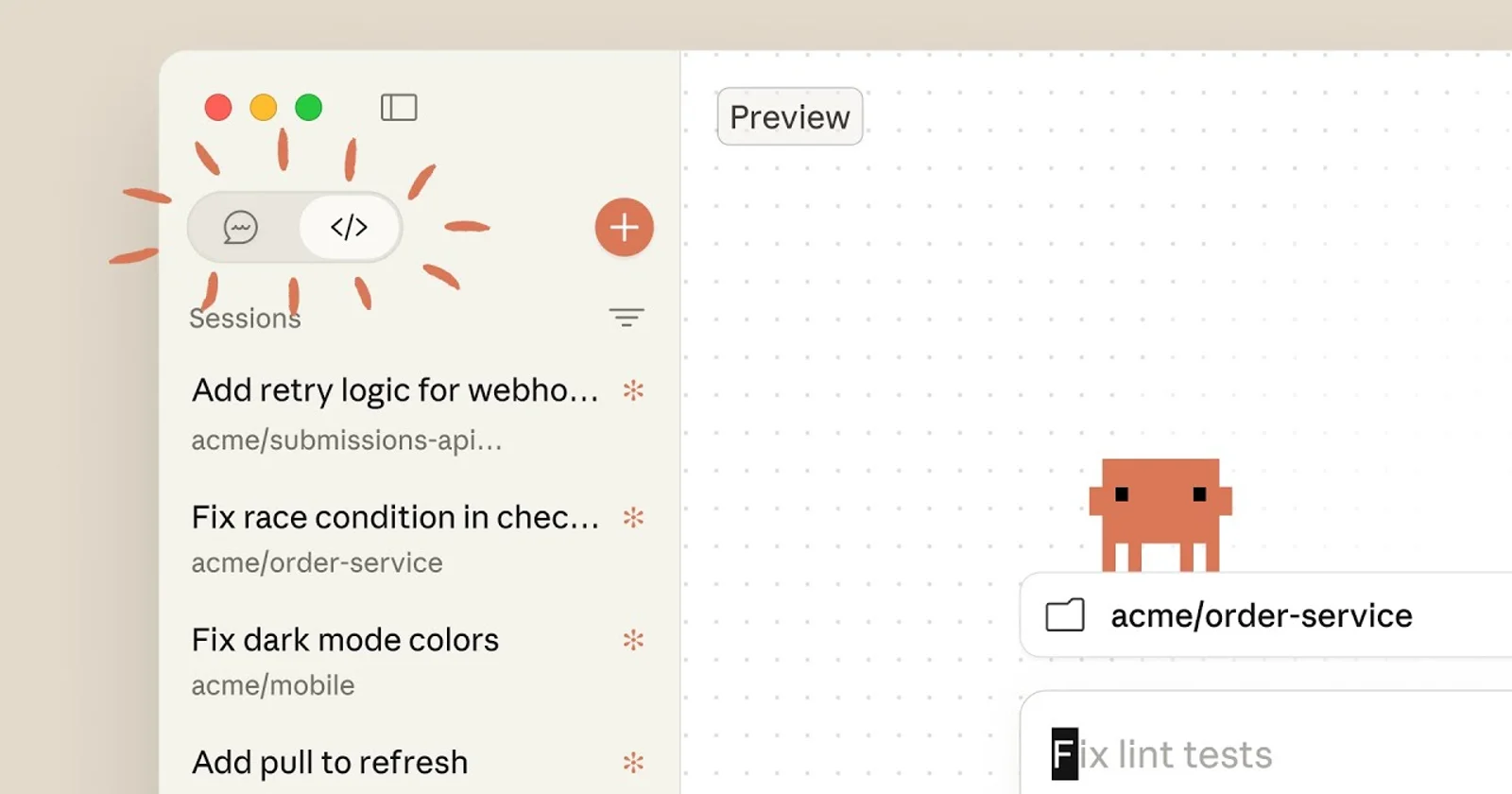
In the CLI world, working across projects means a terminal window per project, or a tmux session you re-attach like a sysadmin summoning a ghost, and an SSH hop for each remote box. Manageable, sure. I managed it for months. But the desktop app just... has sessions, side by side, in one window. The blog fix, the API refactor, the server maintenance, each in its own conversation, and you flip between them like browser tabs.
The part that actually changes your day is what happens while you're not looking. Agent tasks have dead air, the minutes where it's building or testing or grinding through files. In a single terminal you sit there watching. With parallel sessions you give the next project its instructions during the dead air, and the app notifies you when a session needs you. You stop being a spectator of one agent and become a manager of several. That one shift is worth more than every other feature combined.
It has its own browser, and that's bigger than it sounds
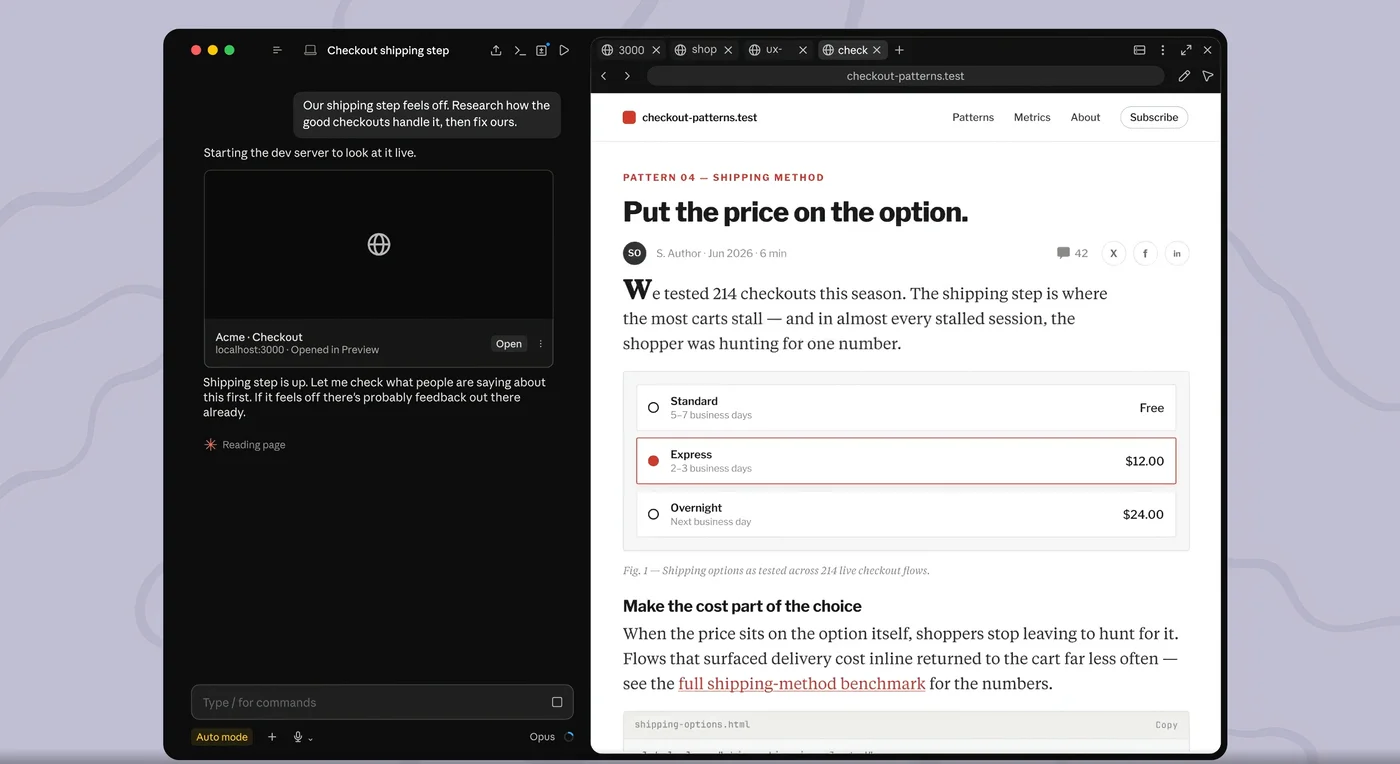
The desktop app now ships with a browser pane the agent can drive. Ask it to fix a layout bug and it doesn't just edit the CSS and declare victory, it opens the page, looks at it, clicks around, takes its own screenshots, and checks that it actually did what you wanted. For frontend work this closes the most annoying loop in the whole workflow: the CLI version edits blind, and you become the eyeballs, alt-tabbing to a browser to describe what you see like a hostage reading a statement.
It also means real smoke testing. New feature ships, the agent loads the live page itself and verifies it works end to end. "Trust me, it compiles" becomes "here's a screenshot of it working." Big difference.
And once the agent has eyes, whole new job descriptions open up. One favorite is design borrowing: point it at any live site and say "look at this URL and build me a page in this style," and it browses the actual page, studies the layout and the spacing and the type choices, and comes back with a version for your project. Try that through the CLI and you're the middleman describing someone else's design in words, which works about as well as humming a song to a musician and hoping. The other one is the visual QA sweep: "walk through every page on my site and tell me what looks off." It clicks through like an intern with infinite patience, screenshots as it goes, and comes back with the misaligned cards, the overflowing text, the button that falls off the screen on mobile. Anthropic's own popup for the feature says Claude can "browse, click, and screenshot to get things done for you, on any site or your own app," and for once the marketing copy undersells it.
Screenshots go in, not just out
Related and criminally underrated: images are first-class citizens. See a broken layout? Screenshot, paste, done, the agent is looking at what you're looking at. Error dialog on some cursed admin panel? Paste it. A design mockup you want built? Drag it in. The CLI technically supports images, but the ergonomics of getting a screenshot into a terminal session are exactly as pleasant as they sound, so in practice you describe things in words and hope. In the desktop app you just show it and paste it in the conversation, the way you'd show a coworker.
The pile of smaller wins
Permission prompts are buttons you read and click, not a y/n race at the bottom of a scrolling terminal. Diffs render properly, so reviewing what the agent changed feels like a code review instead of archaeology. Old sessions live in a list you click to resume, no flags, no hunting. Notifications reach your actual desktop, so a long task can run while you make coffee. The app updates itself, no version wrangling. And your conversations are searchable later, which has saved me more than once when I needed to remember why we changed something three weeks ago.
And the quiet one: it's the version you can hand to anyone. The terminal is still the single biggest wall between “normies” and this technology, and the desktop app just removes it. If you've been trying to get a non-technical friend into building, the on-ramp is the desktop app, full stop.
Where the CLI still wins
Scripting and automation are CLI territory: piping Claude into cron jobs, CI pipelines, and batch work is what the terminal version is for. If you genuinely live inside one remote box all day, running the CLI there directly can still be the shortest path. And if your muscle memory is fifteen years of tmux, nobody's evicting you, the engine is identical and nothing about your workflow is wrong.
But "I'm comfortable in the terminal" is a reason you can use the CLI, not a reason you should. I was comfortable too. Comfort is what kept me from noticing that I'd assigned myself the job of being a worse version of the desktop app: manually juggling sessions, manually screenshotting, manually being the browser. If you're new here, start with the desktop app and never look back, and if you're not sure what any of this is, start one post earlier. If you're an old terminal hand, give the cockpit two honest weeks. The wrench will still be there. You just won't reach for it much.