
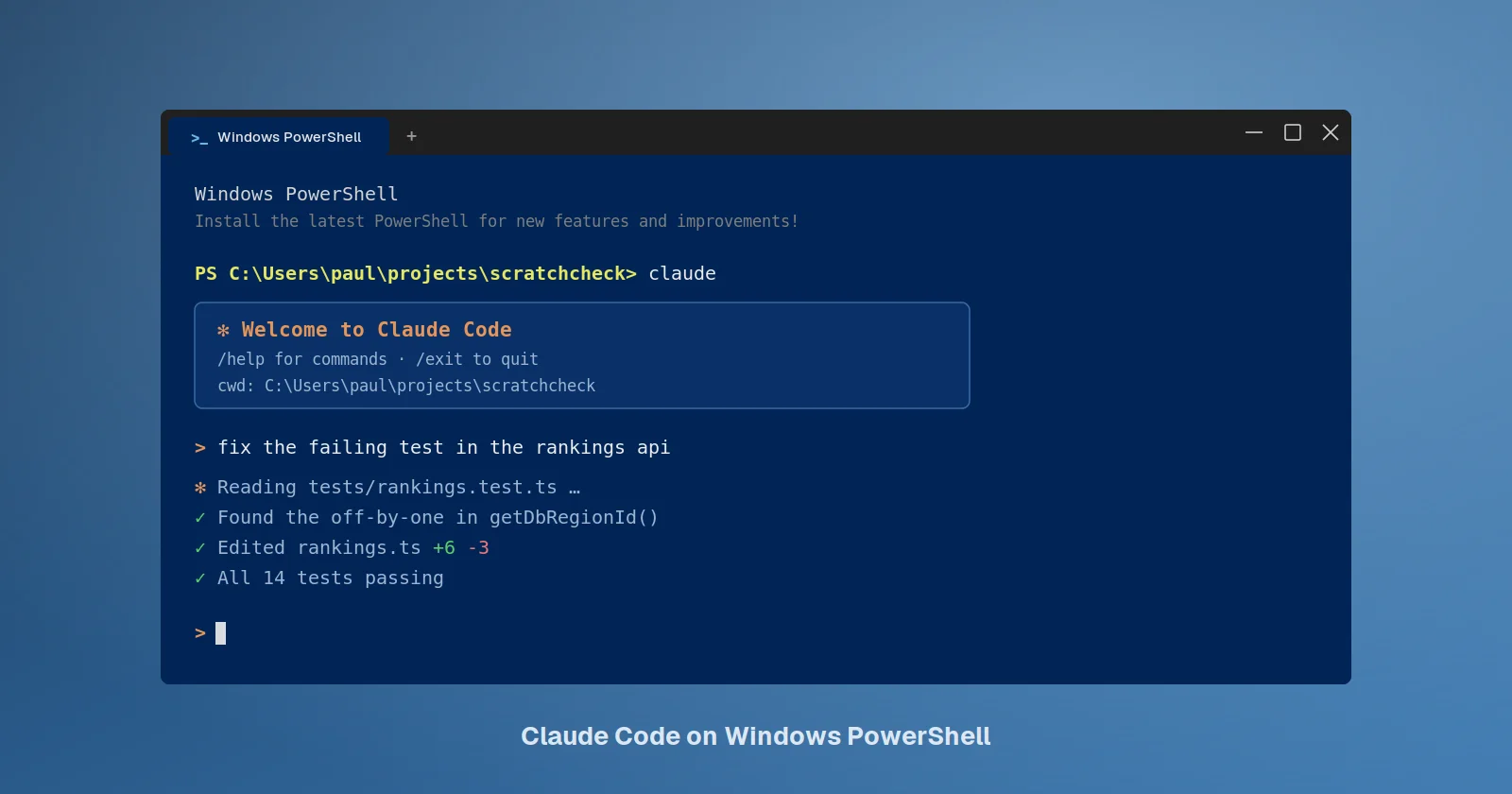
The Windows story for Claude Code has changed enough over the last year that most of the advice you'll find online is at least partly out of date, where guides written in 2024 still tell you to install WSL2 as if running the tool natively on Windows were impossible, and guides written in early 2025 still treat the native path as experimental. Neither of those is true anymore. Native Windows is a first-class supported platform now, the install is a single PowerShell line, and the rough edges are small enough that the question of "should I use WSL" has actually become an honest question about preference rather than an obvious workaround for a broken native experience. This guide is what I'd tell a Windows user who's installing the tool today, written against the current docs at code.claude.com/docs/en/setup rather than against the way things used to be.
The thing worth understanding up front is that Claude Code on Windows is a real native binary, not a Linux process pretending to run on your system, and the choice between PowerShell and WSL is genuinely a choice rather than a question with a single right answer. The native path is faster on first launch, integrates with your Windows filesystem without the /mnt/c path translation overhead, and works with the tools you already use on Windows. The WSL path gives you a Linux shell environment if that's what you're used to and slightly smoother behavior in a few edge cases. The cost of picking wrong is small either way, because both paths actually work, but the cost of not knowing which one you picked and why is higher than it sounds.
Why the Windows story is better than people think
The reason the Windows story has gotten genuinely good is that Anthropic has been actively investing in the native path rather than treating it as a second-tier port of the Linux tool, where the install command is a real PowerShell installer that downloads a Windows binary, the binary handles native paths and Windows line endings cleanly, and the tool has explicit Windows-aware behavior in places like the PowerShell tool that runs shell commands when Git Bash isn't available. The friction you'd have hit a year ago around path translation and shell incompatibilities mostly isn't there anymore, and the rough edges that remain are narrow and well-documented.
The other reason this matters is that the conventional wisdom of "just use WSL on Windows for any serious developer tooling" was built for a different era of Windows development, where the native Windows experience for command-line tooling was genuinely bad and WSL was the only reasonable workaround. That era is mostly over for new tools designed with Windows in mind, and Claude Code falls into that category. WSL is still a great choice if you'd rather work entirely inside a Linux shell, but it's not the only choice, and treating it as the default when you don't actually want to live in WSL is choosing friction over comfort for no real benefit.
The install: one PowerShell line, then verify your PATH
The recommended install on Windows is the native installer, which downloads a self-updating binary and puts it on your PATH in a single command. Open Windows PowerShell (not Command Prompt, and not "Windows PowerShell (x86)" which is the 32-bit entry that will fail) and run irm https://claude.ai/install.ps1 | iex. The irm command is the PowerShell shorthand for Invoke-RestMethod, and the iex on the receiving end of the pipe is Invoke-Expression, which is the standard PowerShell idiom for running a remote script. The whole thing takes about thirty seconds on a normal connection.
If you'd rather use Command Prompt or stay out of PowerShell for some reason, the CMD equivalent is curl -fsSL https://claude.ai/install.cmd -o install.cmd && install.cmd && del install.cmd, which downloads, runs, and deletes the install script in one line. If you prefer a package manager, winget install Anthropic.ClaudeCode works and is the right call if everything else on your system is also installed via WinGet, with the caveat that WinGet installations don't auto-update so you'll need to run winget upgrade Anthropic.ClaudeCode every few weeks. The npm path (npm install -g @anthropic-ai/claude-code) also works and installs the same underlying binary, though again without auto-updates.
The single most common Windows install issue isn't the install itself but the PATH check afterward, where the installer places claude.exe at %USERPROFILE%\.local\bin\ and that directory isn't automatically on the PATH of every shell. After installing, close your existing terminal windows entirely and open a fresh one, then run claude --version. If you get 'claude' is not recognized, the PATH update hasn't taken effect, which usually means either you didn't restart your terminal or the installer couldn't write to your User PATH for permission reasons. The fix in PowerShell is to manually add the directory: $currentPath = [Environment]::GetEnvironmentVariable('PATH', 'User'); [Environment]::SetEnvironmentVariable('PATH', "$currentPath;$env:USERPROFILE\.local\bin", 'User'), then restart your terminal. The full PATH troubleshooting checklist is at code.claude.com/docs/en/troubleshoot-install and is worth bookmarking if anything else goes wrong.
Install Git for Windows, even if you don't use Git
The one Windows-specific install step that matters more than it sounds is to install Git for Windows, even if you have no plans to use Git itself. The reason isn't about Git, it's that Claude Code uses Bash as its default shell for running shell commands, and Git for Windows is what ships the Bash environment that the tool uses to execute those commands. Without Git for Windows, the tool falls back to PowerShell for shell commands, which works but has rougher edges around quoting, path handling, and tool compatibility that you'll bump into during real use.
The install is straightforward: download from git-scm.com/downloads/win, run the installer, and during setup check the option labeled "Add to PATH" so Git's bin directory ends up on your PATH. Restart your terminal after the install and the tool will pick up the Bash environment on your next session automatically. If Git is already installed but the tool can't find Bash, you can point it at the right location explicitly with a setting in your ~/.claude/settings.json:
{ "env": { "CLAUDE_CODE_GIT_BASH_PATH": "C:\\Program Files\\Git\\bin\\bash.exe" } }
That points the tool at the Git for Windows bash binary directly, which is the right move if you have Git installed in a non-default location or if the default detection isn't working for some reason. The path in the setting needs the doubled backslashes because the value is a JSON string.
If you genuinely don't want Git for Windows on your system, the tool will still work with PowerShell as its shell, and Anthropic has actually been investing in the PowerShell path enough that it's a reasonable choice. The permission rules support PowerShell cmdlets and aliases natively, and the PowerShell tool gets a real seat at the table rather than being treated as a fallback. The honest recommendation is still to install Git for Windows because the Bash environment removes a category of small problems, but the PowerShell-only path is increasingly viable if you have a reason to prefer it.
When WSL2 is still the right call
The case for WSL2 on Windows isn't that the native path is bad, it's that some workflows are genuinely easier inside a Linux shell and if your whole development setup is already Linux-centric there's no reason to fight it. If you're running Linux-only tooling for things outside the tool itself (a database that ships only Linux Docker images, a build pipeline that assumes GNU coreutils, scripts that depend on bash-specific behavior), you'll be happier doing all your work inside WSL where the environment is consistent. The native installer works inside WSL the same way it works on Linux: curl -fsSL https://claude.ai/install.sh | bash in your WSL terminal and you're done.
The other case for WSL is if you've been using it for years and your muscle memory and shell config and SSH keys all live there already, where switching to native Windows would mean rebuilding a working environment for a marginal improvement. That's a fine reason to stay, and the tool doesn't care which path you pick. The case against WSL is purely the friction of crossing the boundary, where editing files in your native Windows filesystem from WSL goes through the /mnt/c translation layer that's slower than native access and occasionally produces surprising permission behavior, and where copying credentials or tokens between Windows tools and WSL tools is one more thing to manage.
The version of WSL that matters is WSL2, not the original WSL1. There's a known regression on WSL1 where the native Linux binary the tool ships produces an Exec format error because of how the binary's program headers are structured, and the workaround is fiddly enough that the right answer is to upgrade your distribution to WSL2 with wsl --set-version <DistroName> 2 from a Windows PowerShell prompt. If you're starting fresh, WSL2 is the default on modern Windows installs and you won't hit this, but if you've had WSL installed for a while it's worth checking.
Terminal choice and the small settings worth turning on
The default terminal on modern Windows is Windows Terminal, which works well with Claude Code and supports Shift+Enter for multi-line input natively without any setup. If you're using something older like the classic conhost.exe Command Prompt window or the standalone PowerShell ISE, the experience will be noticeably worse and the right move is to install Windows Terminal from the Microsoft Store and use it as your default. The settings worth knowing about are the same as on any platform but worth restating for Windows users:
The first is fullscreen rendering mode, which switches the tool from drawing into your terminal's scrollback to drawing on a separate screen, where the display stays stable when the tool is working hard and mouse-based scrolling works inside the tool itself. Set CLAUDE_CODE_NO_FLICKER=1 as an environment variable to make it the default, which on Windows means [Environment]::SetEnvironmentVariable('CLAUDE_CODE_NO_FLICKER', '1', 'User') in PowerShell, or via the System Properties → Environment Variables UI if you'd rather click through it.
The second is image paste, where you can copy a screenshot to your clipboard and paste it into the Claude Code prompt with Alt+V on Windows (the docs note this as different from the Ctrl+V used on macOS and Linux), and the tool inserts an [Image #N] chip that you can reference in your prompt. This is genuinely useful for UI debugging and the kind of "look at this screenshot and tell me what's broken" prompts that are hard to do any other way.
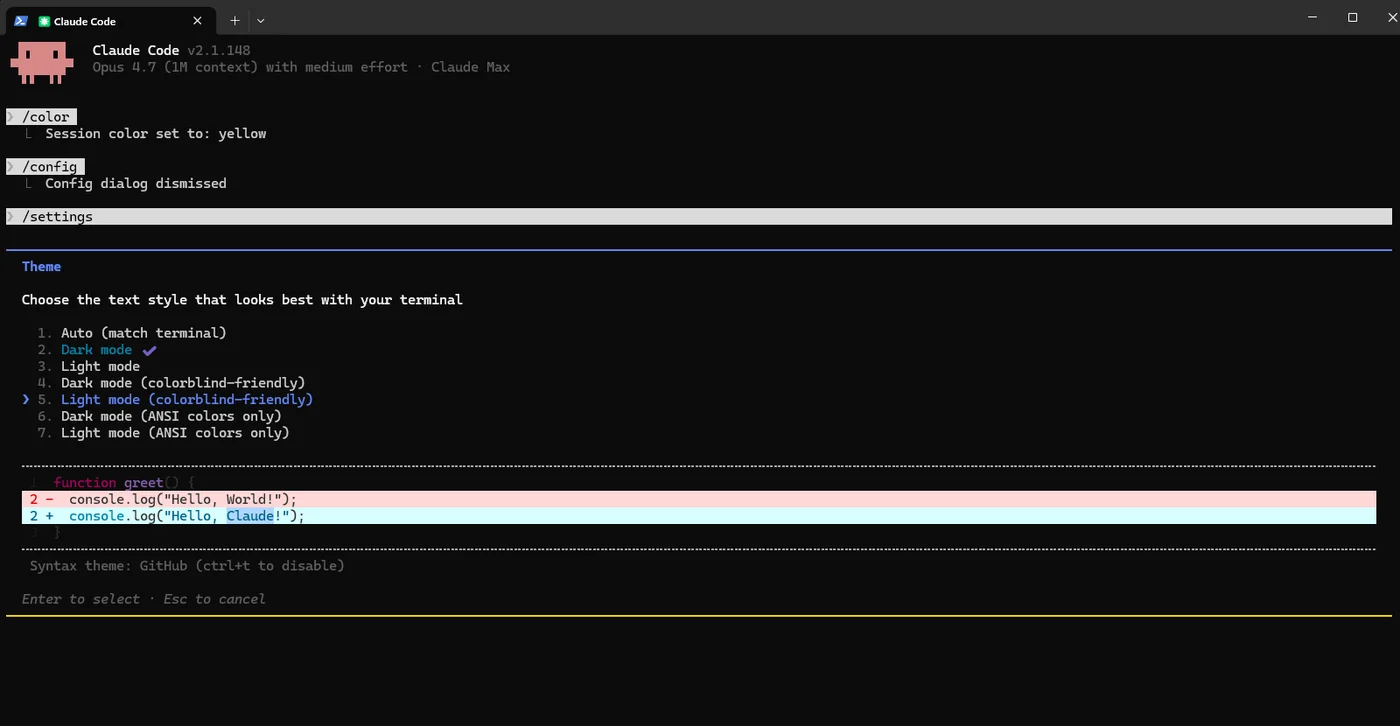
The third is custom themes via /theme, which works the same as on every other platform, where you can choose a built-in light or dark preset or define your own in %USERPROFILE%\.claude\themes\ as a JSON file. The auto option follows your Windows light/dark setting, which is the right default if you don't care about exactly which colors you're looking at.
The bigger picture
The reason I'd encourage Windows users to give the native path a fair try rather than reflexively reaching for WSL is that the cost of the native path is genuinely lower than it used to be, and the cost of WSL is genuinely higher than it looks if you're not already living in a Linux-first workflow. Each install path on Windows has trade-offs that are different from each other, and the right one for you depends on whether you'd otherwise be happy in a native Windows development environment or whether the Linux shell is what you actually want to be using.
The other piece of the bigger picture is that Windows as a platform for serious developer tooling has gotten meaningfully better in the last few years, and Claude Code is one of the tools that has invested in that platform rather than treating it as an afterthought. The native install, the PowerShell tool, the permission rules that understand PowerShell cmdlets, and the explicit Windows-aware behavior throughout the docs are signs that the tool is being built for Windows users rather than ported to them, and that's worth recognizing when you're deciding how to set things up. The path you pick on day one is the path you'll be using for the next year of sessions, and the path that fits your actual workflow rather than the one a 2024 blog post recommended is the one worth picking.