
Remote Control lets you start a Claude Code session on your own computer and then pick it up from the Claude app on your phone or from claude.ai/code in any browser. The session keeps running on your machine, with your files, your tools, and your settings. Your phone is just the screen. This guide covers setup, what breaks it, and how it differs from Dispatch. The reference is Anthropic's Remote Control documentation.
What you need
Remote Control works on Pro, Max, Team, and Enterprise plans. It doesn't work with an API key, so if you sign in to Claude Code with an Anthropic Console key, you'll need to sign in with a Claude account instead. On Team and Enterprise, an Owner has to turn on the Remote Control toggle in the Claude Code admin settings before anyone in the organization can use it.
On the phone side, you need the Claude app for iOS or Android, signed in to the same account. A browser at claude.ai/code works too.
Three ways to start it
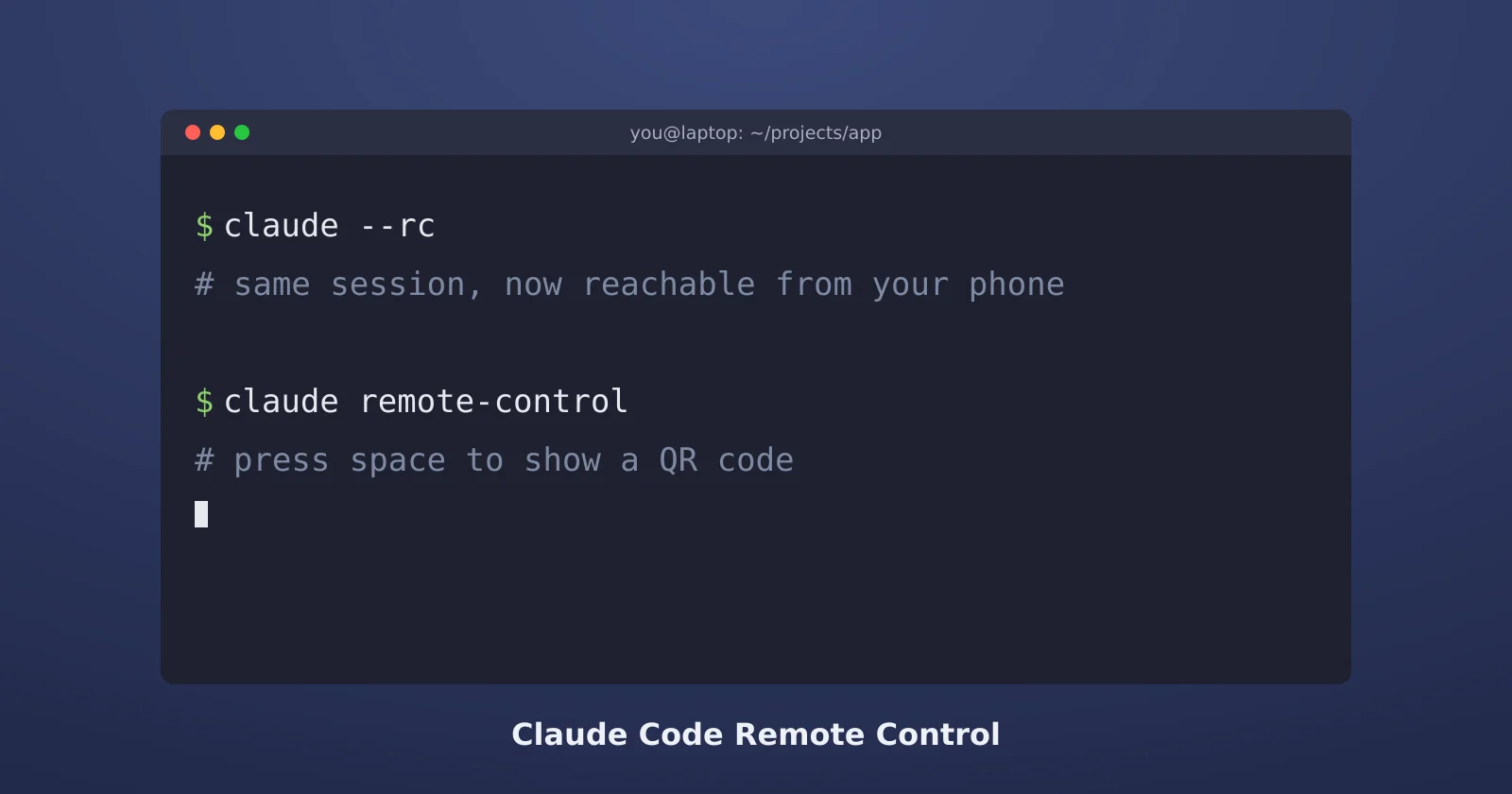
Server mode. Run claude remote-control in a terminal in your project folder. Claude Code waits for you to connect, and you can press the spacebar to show a QR code to scan from your phone. Server mode can host many sessions at once. The docs list a default maximum of 32.
A normal session you can also reach remotely. Start Claude Code with claude --remote-control, or the short form claude --rc. You work in the terminal as usual, and the same session shows up on your phone.
From inside a session you already started. Type /remote-control or /rc. This is the one people use most, because you rarely know in advance that you're about to walk away. It also works in a local session in the desktop app's Code tab.
If you want every session reachable without typing anything, run /config and turn on Enable Remote Control for all sessions.
What happens when your computer sleeps or the network drops
The session lives on your computer, so your computer has to be on. Per the docs, if your laptop sleeps or your network drops, Claude Code reconnects automatically when the machine comes back online. If you close the terminal, quit the desktop app or VS Code, or otherwise stop the claude process, the session goes offline for good.
Server mode is a little less patient. During a longer outage, Claude Code gives up after roughly 10 minutes and the claude remote-control process exits, so you'll need to start it again.
To stop a desktop from dozing off in the middle of a task, the Claude desktop app has a setting for it. Anthropic's scheduled tasks docs say to turn on Keep computer awake under Settings > This computer > System. Closing a laptop lid still puts it to sleep, so leave it open or set Windows or macOS to ignore the lid while plugged in.
One session per instance
Each Claude Code instance supports one remote session at a time. If you want to juggle several from your phone, start more instances or use server mode, which handles many sessions at once.
Dispatch and the "Asleep" status
Dispatch is a different feature with a similar idea: you message Claude from your phone and it works on your desktop through the desktop app's Cowork mode, using your files, connectors, and apps. Anthropic's Dispatch help article now says Dispatch isn't available to new users, though existing users can keep using it for now.
Dispatch needs the desktop app open and the computer awake. When either isn't true, the phone shows the desktop as Asleep or says it can't reach your desktop. The fix is usually the boring one: wake the computer, open the Claude desktop app, and turn on Keep computer awake.
There's also a known bug where Dispatch keeps showing Asleep even when the computer is awake and the app is open. The main report, issue #45937, has been open since April with dozens of comments. Users in related reports tried signing out on both devices, deleting the local bridge state, deleting the Dispatch conversation, and reinstalling, and none of it reliably fixed the problem. If you hit it and you're working in code, Remote Control is the more dependable way to reach your machine from a phone.
A setup that works
For a typical "start something at my desk, check on it from the couch" day: start Claude Code in your project, give it the task, type /rc, and open the session on your phone. Turn on Keep computer awake in the desktop app if the job might run long, and keep the laptop plugged in with the lid open. If you'd rather Claude keep going while you're out, the SSH guide covers running it on a server that never sleeps.
Sources
- Claude Code docs: Remote Control and Desktop scheduled tasks (Keep computer awake)
- Claude Help Center: Dispatch
- GitHub: Dispatch main conversation permanently offline (issue #45937)