
The difference between someone who's been using Claude Code for a week and someone who's been using it for six months usually isn't about the model or the tool's capabilities, it's about which workflow patterns they've internalized. The tool ships with a small number of features that change the shape of what you can do with it (plan mode, subagents, auto mode, the /loop skill, headless invocation, parallel sessions via worktrees), and the gap between knowing those features exist and actually using them is where most of the productivity difference comes from. This guide is the working version of that knowledge: the five or six workflow moves that show up across Anthropic's own best practices guide and across the patterns I've watched solo founders settle into after a few months of using the tool seriously.
The thing to understand before any of the specific features is the constraint that shapes all of them: Claude Code's context window fills up fast, and performance degrades as it fills, where a session that started crisp gets noticeably worse around the time the tool has read its tenth file or run its fifteenth shell command. Almost every workflow technique below is ultimately about managing that context budget, whether by keeping research in a subagent that returns only the summary, by clearing the conversation between unrelated tasks, by structuring a session so the planning phase doesn't pollute the implementation phase, or by running short-lived headless invocations instead of long interactive ones. Once you internalize that context is the resource being managed, the specific techniques stop feeling like a grab bag and start feeling like variations on the same underlying move.
Explore, then plan, then implement
The pattern Anthropic recommends as the default workflow for anything beyond a tiny change is to break a task into three phases that each happen with a clean context: explore the codebase to understand what's there, plan the change in detail before touching any files, and only then implement against the plan you wrote. The official guide structures this as a four-step process where commit is the fourth step, and the reason to follow it isn't that any individual phase is hard, it's that letting the tool jump straight to coding tends to produce code that solves the wrong problem, where you discover halfway through a long implementation that the approach was wrong and the work needs to be redone.
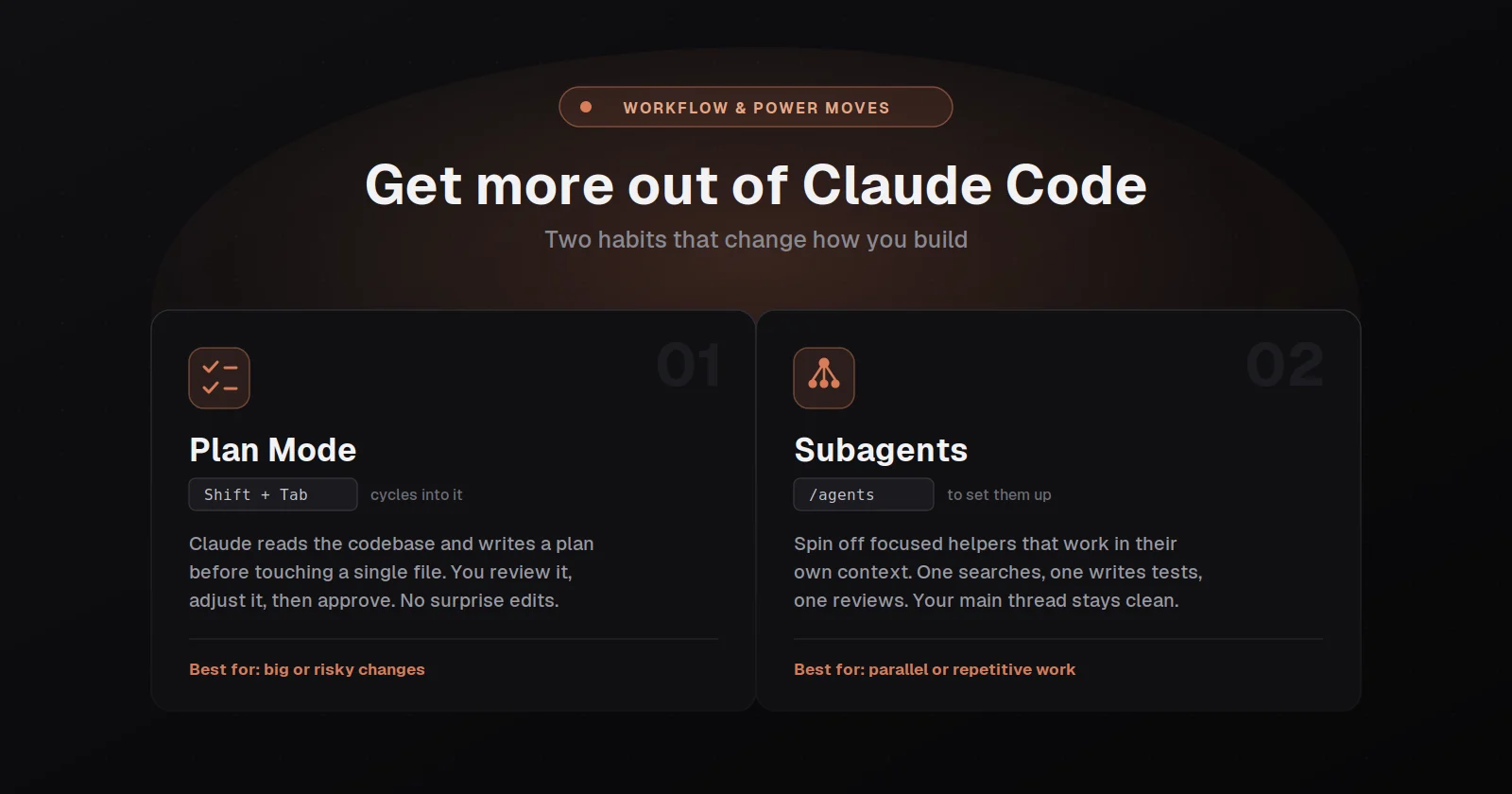
The mechanical version of this is to press shift+tab in the prompt until the indicator shows plan mode, where the tool will read files and run read-only shell commands to understand the codebase but will not edit your source, and your first prompt should be something like "read the auth flow in src/auth/ and tell me how sessions and login work". Once the tool has finished exploring, your next prompt asks for a plan: "I want to add Google OAuth, what files need to change, what's the session flow, write a detailed plan." When the plan is ready, the tool presents it and asks how you want to proceed, with options to approve and switch into auto mode, approve and accept edits, approve and review each edit manually, or keep planning with feedback. You can press Ctrl+G at this point to open the plan in your editor and modify it directly before implementation starts.
The reason this pattern compounds in your favor is that the plan you wind up with after a few rounds of refinement is usually meaningfully better than the implementation you'd have gotten from the tool's first guess, where the questions you ask during planning surface assumptions the tool would otherwise have made silently. Plan mode also exists as a per-prompt prefix you can use without committing to a whole planning session: type /plan at the start of a single prompt and that one turn runs in plan mode while the rest of the session stays in your default mode. For tasks where the scope is obvious and the fix is small (renaming a variable, adding a log line, fixing a typo) the planning step adds friction without value and you should skip it. Planning is most useful when you're uncertain about the approach, when the change spans multiple files, or when you're working in code you don't already know.
Use subagents to keep research out of your main context
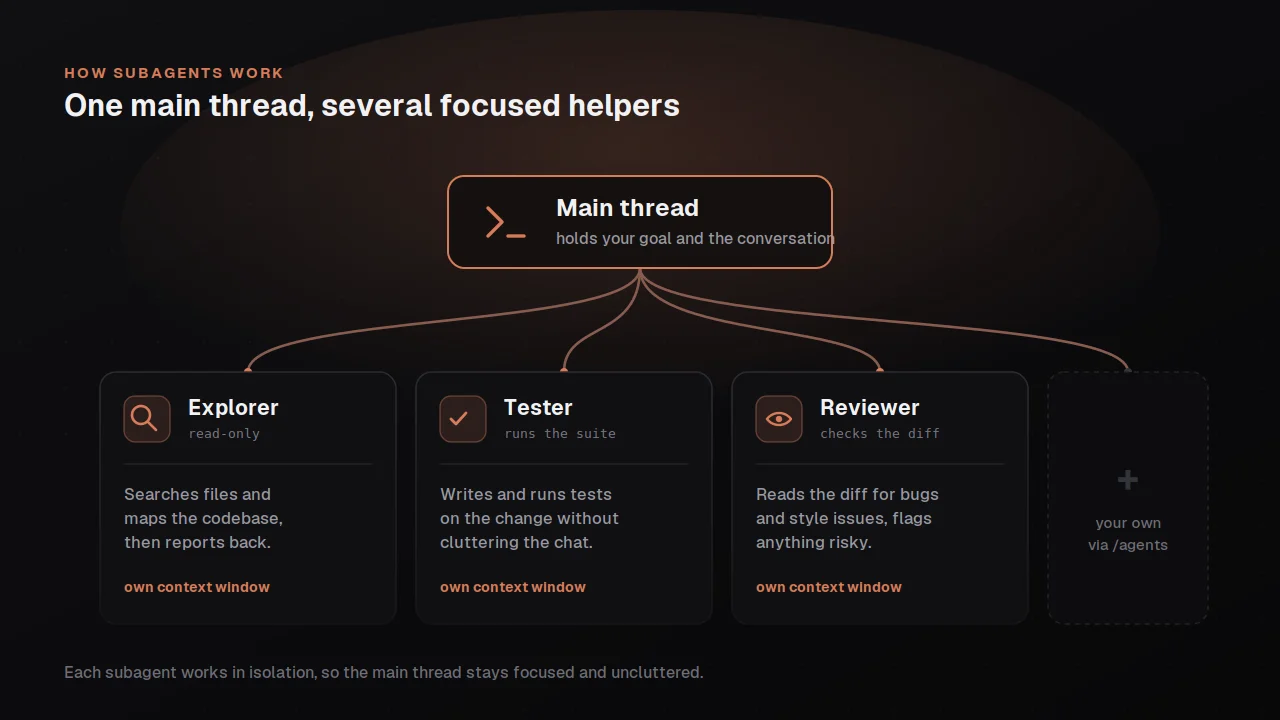
The single highest-leverage move for managing context budget is to delegate research and exploration to subagents, which run in their own context window and return only a summary to your main session. The reason this matters is that when the tool researches a codebase it reads many files, all of which would normally consume your context, but a subagent reads them in its own context window and reports back with findings, so your main conversation stays clean for the implementation work you actually care about.
The cleanest way to invoke this on day one is to just ask: "Use subagents to investigate how our authentication system handles token refresh, and whether we have any existing OAuth utilities I should reuse." The tool spawns a subagent (usually the bundled Explore or general-purpose agent), the subagent explores the codebase in its own window, and the summary comes back to your main session without any of the file reads in between cluttering your context. The same pattern works for code review after an implementation ("use a subagent to review this code for edge cases"), where the reviewer benefits from a fresh context that isn't biased toward the implementation you just wrote.
Custom subagents live in .claude/agents/ as markdown files with frontmatter that names the agent, describes when to use it, restricts which tools it can use, and optionally pins it to a specific model. A security reviewer might look like a file at .claude/agents/security-reviewer.md with tools: Read, Grep, Glob, Bash in the frontmatter and a system prompt that says "you are a senior security engineer reviewing for injection vulnerabilities, auth flaws, secrets in code, and insecure data handling". Once defined, you tell the tool to use it explicitly: "Use a subagent to review this code for security issues." Custom subagents make the most sense for work you do repeatedly across projects, where the cost of writing the agent definition once pays off across every future invocation.
Auto mode for the long unattended runs
Auto mode is the right choice when you trust the general direction of a task but don't want to click through every permission prompt, where a separate classifier model reviews each action the tool is about to take and blocks anything that escalates beyond your request, targets infrastructure the classifier doesn't recognize, or appears to be driven by hostile content the tool read along the way. The interactive default mode interrupts you for every file write and shell command, which is the right behavior when you're actively reviewing, but becomes tedious when you've kicked off a task and stepped away to do other work. The full reference is at code.claude.com/docs/en/permission-modes and is worth reading once.
The practical version is to press shift+tab until you cycle to auto mode, or to launch directly with claude --permission-mode auto -p "fix all lint errors" if you're running non-interactively. Auto mode also has guardrails that don't show up until you hit them: the classifier blocks downloading and executing code (curl | bash), sending sensitive data to external endpoints, production deploys and migrations, mass deletion of cloud storage, granting IAM permissions, and force-pushing to main. If the classifier blocks the same action three times in a row or twenty times total, auto mode pauses and the tool falls back to prompting you, on the assumption that a session that's hitting the classifier this often is probably trying to do something it shouldn't.
The thing worth knowing about auto mode that doesn't show up in most introductions is that boundaries you state in conversation are treated as block signals by the classifier, where if you tell the tool "don't push" or "wait until I review before deploying", the classifier blocks matching actions even when the default rules would allow them. That stays in force until you lift it in a later message, which means you can run auto mode with stated boundaries that are stronger than the default classifier rules without having to write a permission policy. The flip side is that boundaries you state in conversation can be lost if context compaction removes the message that stated them, so for hard guarantees that need to survive across compactions you want a deny rule in your settings rather than a conversational boundary.
Auto mode requires Claude Code v2.1.83 or later, requires you to be on Sonnet 4.6, Opus 4.6, or Opus 4.7, and is currently available only on the Anthropic API path (not Bedrock, Vertex, or Foundry). On Team and Enterprise plans an admin has to enable it organization-wide before users can turn it on.
/loop, /verify, and the other bundled skills worth knowing
The tool ships a set of bundled skills that work like commands but are actually skills the model orchestrates, which means they have access to the full toolset rather than executing fixed logic. The ones worth knowing about on day one are /loop, which repeats a prompt on an interval and is the right tool when you want to poll something or run a task on a cadence; /verify, which builds and runs your app to confirm a change actually works against the running app rather than just against tests; /run, which launches your app so you can see a change working; /code-review, which reviews the current diff at a chosen effort level; and /security-review, which is the same shape but focused on security findings.
The pattern most worth adopting is /verify after any change you'd otherwise have to manually test, where the tool builds and launches your app, exercises the path you changed, and reports back whether the change actually does what it should. This is much harder than it sounds for the tool to get right without help, which is why the bundled /run-skill-generator exists: run it once per project and it captures the install steps, env vars, and launch commands that /run and /verify need, then commits the recipe as a per-project skill at .claude/skills/run-<name>/. After that, every future invocation of /run and /verify uses the recorded recipe rather than rediscovering it from your README or package.json.
/loop is genuinely underused and worth knowing about specifically because most users never discover it. It takes a prompt and an interval (/loop 5m /babysit-prs) and runs the prompt on that cadence until you stop it, or it runs in dynamic mode where the model paces itself between iterations based on what it's watching. The right use cases are polling for external state (a CI run, a deploy queue, a remote build), recurring housekeeping (review the diff every fifteen minutes during a long refactor session), and ad-hoc monitoring (check whether the rate limiter is still working every five minutes during a load test). It's the kind of feature that sounds niche until you've had it once, and then you find yourself wanting it constantly.
Headless mode and running things in parallel
For tasks that don't need a conversation, the tool runs non-interactively with claude -p "your prompt", which produces output to stdout and exits when done. The full headless mode reference is on the docs site, and the version worth knowing on day one is that you can pipe content in (tail -200 app.log | claude -p "summarize anomalies"), produce structured output (--output-format json), and constrain what tools the tool is allowed to use (--allowedTools "Edit,Bash(git commit *)"). This is what you use for CI pipelines, pre-commit hooks, and any script that wants the tool's output rather than its conversation.
The pattern that goes with headless mode is fanning out across many files for large migrations or bulk operations, where you generate a list of files to process and loop a headless invocation across them. The shape is for file in $(cat files.txt); do claude -p "Migrate $file from React to Vue" --allowedTools "Edit,Bash(git commit *)"; done, where each invocation runs in its own short-lived session against one file with a tight permission allowlist. This works for migrations, large translations, doc updates, and any task where the unit of work is one file at a time and the tasks are independent of each other.
For parallel interactive work, the cleanest pattern is to run multiple sessions in separate git worktrees, where each session has its own checkout of the repo and edits don't collide. This is genuinely useful for the writer-reviewer pattern (one session writes the implementation, another reviews it with a fresh context that isn't biased toward the code it just wrote), or for trying the same task with different approaches in parallel and picking the better result. The tool also supports background agents for cases where you want to detach a running session and come back to it later, which is the right move for any task that you expect to take more than a few minutes and don't want to block your terminal on.
Manage your session aggressively, and clear when you should
The single most common failure mode I watch users fall into is the kitchen-sink session, where a conversation that started focused has drifted across multiple unrelated tasks and the context is now full of irrelevant file reads and command outputs that are quietly degrading every subsequent response. The fix is /clear, which resets the context window entirely, and the right time to use it is between any two unrelated tasks rather than at some specific token threshold. The mental model worth holding is that context is the resource being managed, and the cost of clearing is genuinely small (your conversation is saved and resumable with claude --continue if you need it back), while the cost of not clearing accumulates across every subsequent turn.
The two other techniques worth knowing are /compact, which summarizes the conversation to free context while keeping the important code and decisions in scope, and the rewind menu (Esc Esc or /rewind), which lets you back up to a previous turn and start from there. /compact is what happens automatically when you approach the context limit, but you can also run it manually with instructions like /compact Focus on the API changes to control what's preserved. The rewind menu is the right tool when the tool has gone in a wrong direction in the last few turns and you want to undo without losing the rest of the session, where you can choose to restore conversation only, code only, both, or summarize from a selected message and continue forward.
The bigger picture
The reason this set of features compounds in your favor is that each one is a small move that doesn't matter much in isolation, but together they change what Claude Code is for, from "a thing that writes code when I describe what I want" into "a tool I can structure complex work around with real control over how the work happens." Plan mode separates research from execution. Subagents keep your context clean across long sessions. Auto mode lets the tool run unattended through routine work. /loop turns the tool into something that can run on a cadence rather than just on demand. Headless mode lets the tool be a component in larger workflows rather than just a conversation. Each of these is a small shift, and the cumulative shift is large.
The other piece of the bigger picture is that the failure modes are real and worth being honest about, where every long-time user has stories of correcting the tool over and over until the context was so polluted with failed approaches that nothing worked, or of letting a session drift across so many unrelated tasks that the response quality degraded without them noticing. The Anthropic docs lay out the common ones explicitly (the kitchen-sink session, correcting over and over, the over-specified CLAUDE.md, the trust-then-verify gap, the infinite exploration) and the value of reading them isn't that the patterns are exotic, it's that having names for them makes them easier to notice in yourself. The workflow features are worth learning, but the discipline of using them is what actually compounds across the year of sessions you have ahead of you.